
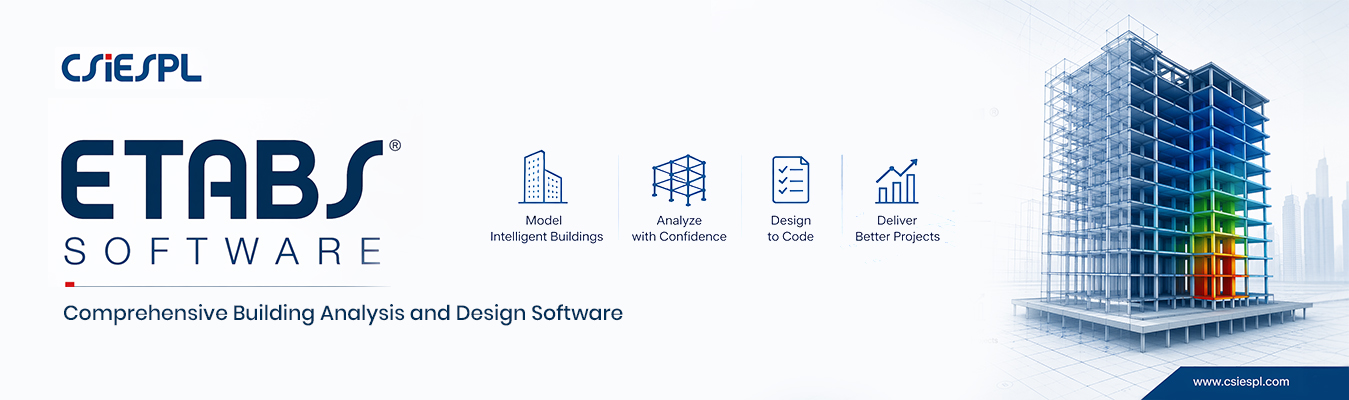
You’re opening a blank screen, looking at the program, not knowing where to begin when you’re building something in ETABS for the first time. A civil engineering student, a new structural designer, or a new engineer starting out with ETABS software may want a clear, actionable roadmap. In this guide, we will walk through the process step by step in a simple and logical way exactly how professionals approach it.
Download the latest version of ETABS before embarking on modeling and have rudimentary knowledge of its interface. Once you’re familiar with the workflow, the software becomes powerful yet user-friendly. Start with a new model. Select appropriate units (typically kN-m or kip-ft depending on your project) and choose a grid system. This grid becomes the backbone of your entire building model, so take time to configure it properly.
This is where your building starts taking shape.
A helpful tip: Start with a simple rectangular building first. Once you are comfortable, move on to more complex shapes like L-shaped or U-shaped buildings.
One of the most important steps is defining your materials like concrete grade and steel grade. Then assign proper section properties to columns, beams, and slabs.
For example:
ETABS makes it easy to create and save section libraries so you don’t have to define them every time.
No model is complete without loads. This is where many beginners make mistakes. You need to define:
Apply these loads carefully on floors and frames. ETABS provides tools to automatically generate load combinations according to Indian standards.
Before running the analysis, always check your model for errors. Use the “Check Model” tool and review warnings. Once everything looks good, run the analysis.
After analysis, carefully review:
This is the stage where you catch and correct most issues.
Once analysis is complete, proceed to the design phase. ETABS enables the design of concrete beams, columns, slabs, and shear walls according to IS codes. Review reinforcement details and make manual changes where necessary for practicality and economy.
ETABS software is a powerful tool, but its real value comes when you follow a systematic approach. Whether you are creating a simple G+3 residential building or a complex commercial tower, logical steps make the process smooth and enjoyable.
If you are looking for professional guidance or want to get your models reviewed by experts, CSI ENGINEERING SOFTWARE PVT. LTD (CSIESPL) offers excellent support for structural engineers and design firms across India.
ETABS software is a truly powerful tool, and following a structured workflow helps you achieve accurate and efficient results every time.
CSI Engineering Software Pvt. Ltd. E-169, Lower Ground Floor Greater Kailash -III, Masjid Moth New Delhi-110048
© CSI 2026. All Rights Reserved.
